
CAUTION: If you have made any changes to theme files, updating the theme will overwrite your modified files, and you will lose any customizations. For safe updates, please enable the Child theme and do any customizations there.
Pay attention that if you change the child theme to parent and vice versa the customizer settings may differ by the theme, so if you have the main theme active and after update you activate the child theme, your customizer settings could be lost.
Install this plugin: Customizer Export/Import
And you will be able to save the customizer settings and save them for backup or later use, also if the initial settings are in the main theme, activate it, save them, then activate the child theme and import them.
There are three approaches you can choose from to update the theme:
1. Automatic theme updates:
Please read this complete article on how to enable automatic updates for KLEO.
2. Manually update the theme by FTP.
– Connect to your server.
– Go to wp-content/themes/ and copy “kleo” folder to your computer so you have a backup of your old files.
– Extract kleo.zip that you have downloaded from ThemeForest. Make sure the resulting “kleo” folder has a style.css in it. Delete on your server all files inside wp-content/themes/kleo and then copy all files inside the “kleo” folder to your server in wp-content/themes/kleo
The last step is to go to WP Admin – Theme options and save the options since some dynamic elements might have been added, and to make sure you get the latest styling.
3. Manually update the theme from the WordPress Dashboard.
- Create a complete backup of your website first before proceeding. You can use a backup plugin of your preference for this, such as UpdraftPlus.
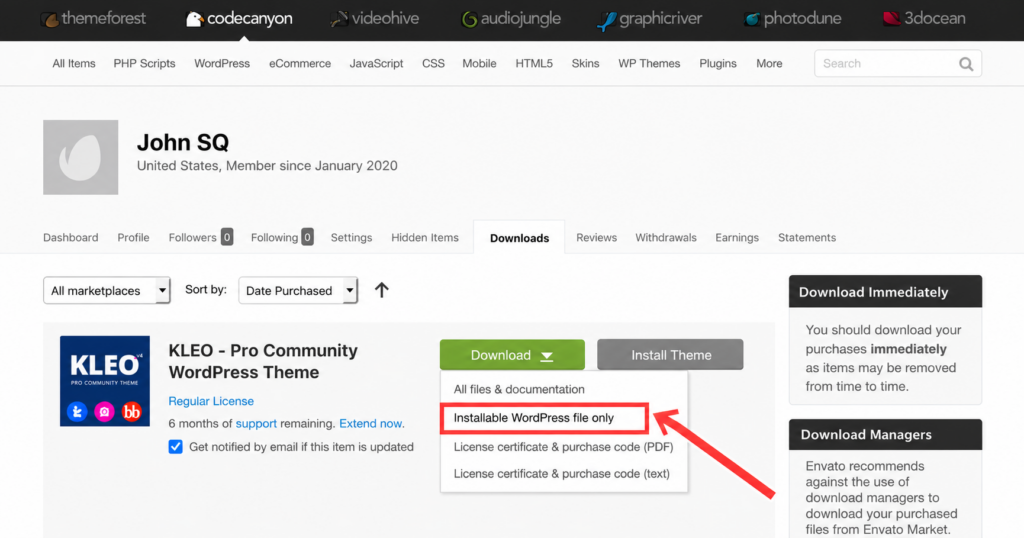
- Access the ThemeForest Downloads link here (https://themeforest.net/downloads) while logged in using the Envato account that you used to purchase the theme
- Next to your Kleo theme, download the updated theme by clicking on the “Installable WordPress file only” option
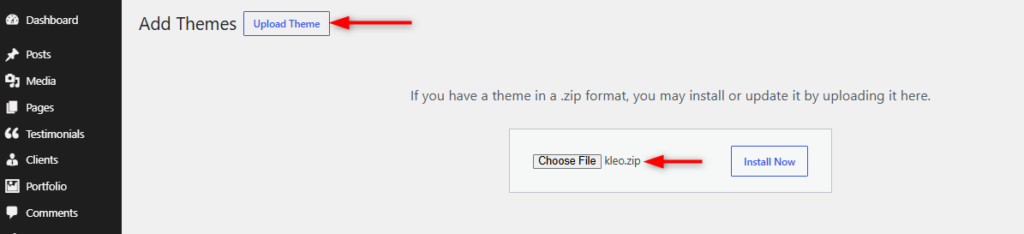
- Navigate to the Appearance > Themes section within your WordPress dashboard
- Click on the Add Theme button at the top, and then click Upload Theme
- Proceed to upload the theme zip file that you downloaded and then install it
- WordPress will then automatically detect the existing theme version and will give you the option to ‘Replace current with uploaded’ version.
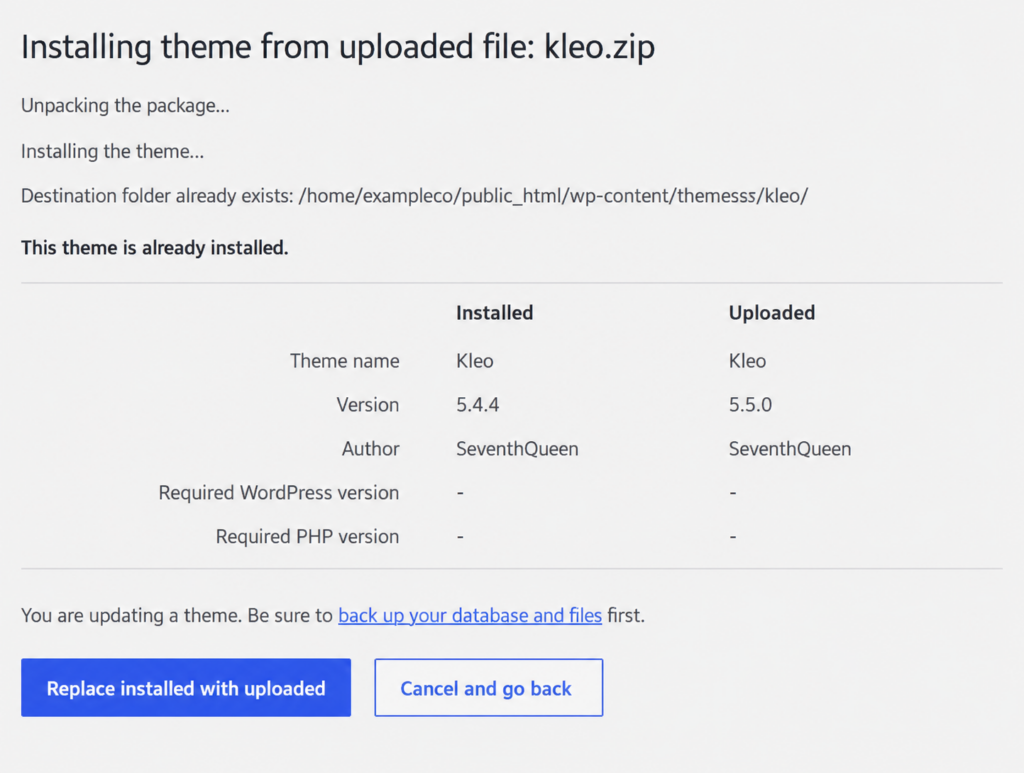
- Click on “Replace Installed with Uploaded”.Once the theme is updated, you can then proceed to update the bundled plugins that may have pending updates from the Appearance > Install Plugins section within your WordPress dashboard.
