• Dashboard
    • Submit Ticket
    • Licenses
    • Login
  • Our Products
    • BuddyBuilder
    • Kleo
    • Typer
    • Seeko
    • SweetDate
    • BuddyApp
  • Services
    • VIP Support
    • WordPress Theme Installation Service
  1. Home
  2. Kleo
  3. How to Update the Theme

How to Update the Theme

CAUTION: If you have made any changes to theme files, updating the theme will overwrite your modified files, and you will lose any customizations. For safe updates, please enable the Child theme and do any customizations there.

Pay attention that if you change the child theme to parent and vice versa the customizer settings may differ by the theme, so if you have the main theme active and after update you activate the child theme, your customizer settings could be lost.

Install this plugin: Customizer Export/Import

And you will be able to save the customizer settings and save them for backup or later use, also if the initial settings are in the main theme, activate it, save them, then activate the child theme and import them.

There are three approaches you can choose from to update the theme:

1. Automatic theme updates:

Please read this complete article on how to enable automatic updates for KLEO.

https://my.seventhqueen.com/docs/kleo/theme-updates/

2. Manually update the theme by FTP.

– Connect to your server.
– Go to wp-content/themes/ and copy “kleo” folder to your computer so you have a backup of your old files.
– Extract kleo.zip that you have downloaded from ThemeForest. Make sure the resulting “kleo” folder has a style.css in it. Delete on your server all files inside wp-content/themes/kleo and then copy all files inside the “kleo” folder to your server in wp-content/themes/kleo

The last step is to go to WP Admin – Theme options and save the options since some dynamic elements might have been added, and to make sure you get the latest styling.

3. Manually update the theme from the WordPress Dashboard.

  • Create a complete backup of your website first before proceeding. You can use a backup plugin of your preference for this, such as UpdraftPlus.
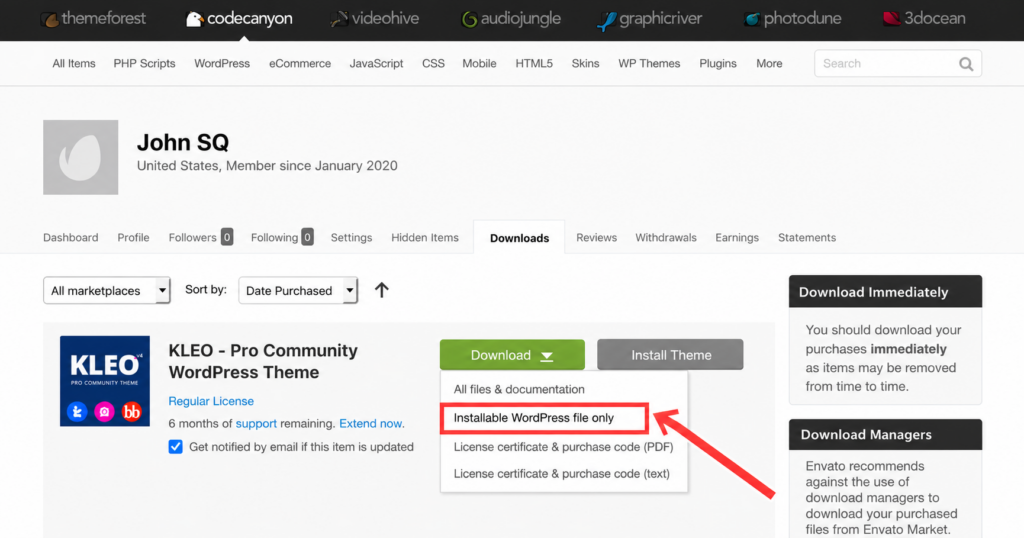
  • Access the ThemeForest Downloads link here (https://themeforest.net/downloads) while logged in using the Envato account that you used to purchase the theme
  • Next to your Kleo theme, download the updated theme by clicking on the “Installable WordPress file only” option
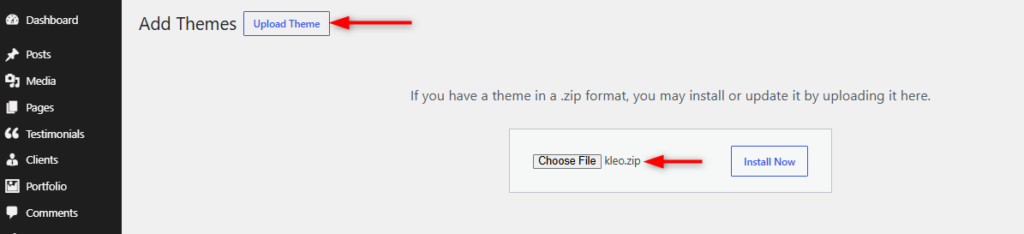
  • Navigate to the Appearance > Themes section within your WordPress dashboard
  • Click on the Add Theme button at the top, and then click Upload Theme
  • Proceed to upload the theme zip file that you downloaded and then install it
  • WordPress will then automatically detect the existing theme version and will give you the option to ‘Replace current with uploaded’ version.
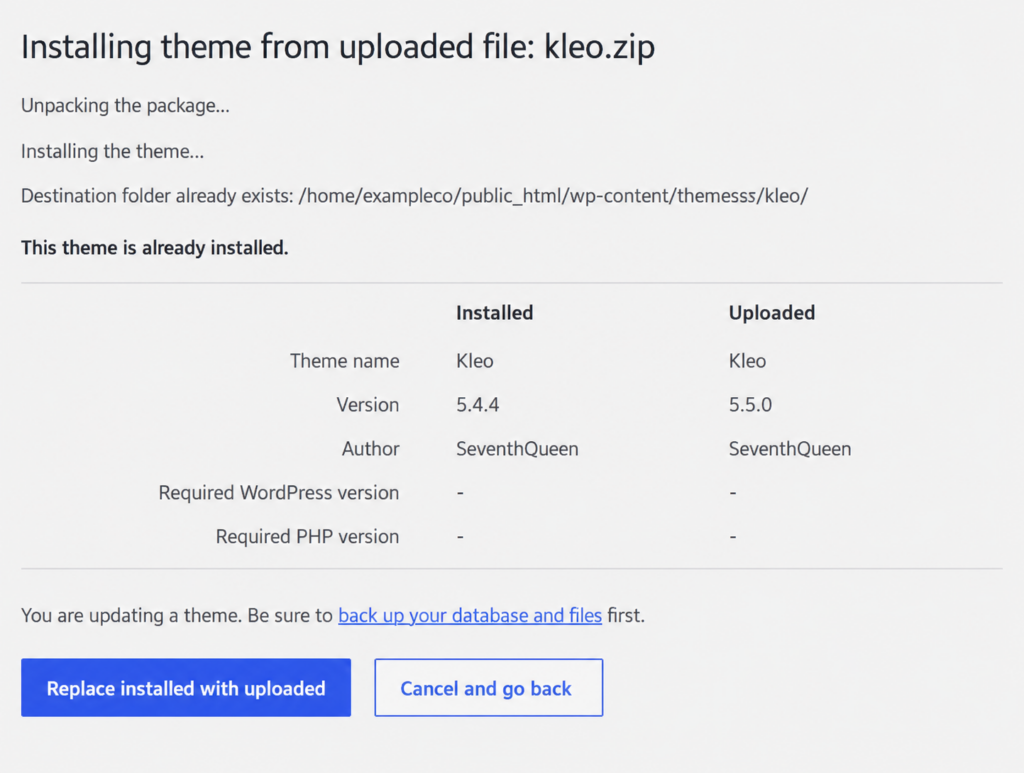
  • Click on “Replace Installed with Uploaded”.Once the theme is updated, you can then proceed to update the bundled plugins that may have pending updates from the Appearance > Install Plugins section within your WordPress dashboard.

Blazing Fast Site Hosting & Maintenance

  • Welcome to Kleo!
  • Theme Requirements
  • What's included in the theme
  • WordPress Installation
  • How to Install Kleo Theme
  • Import demo pages and content
  • Install recommended and required plugins
  • How to Update the Theme
  • How to update WPBakery
  • Updating to KLEO 4.9
  • Theme Automatic Updates
  • BuddyPress overview
  • How to update WPBakery
  • bbPress overview
  • rtMedia overview
  • How To Install and Setup GeoDirectory V1
  • Youzer and Buddypress Integration with Kleo theme
  • Membership overview
  • WP Bakery Page Builder
  • Restrict content for certain membership level
  • Enabling BuddyPress Groups
  • Paid Memberships Pro
  • Restrict content only for logged in users
  • Bundled plugins and activation codes
  • GeoDirectory Migrate to version 2.0
  • Add link to element or button in Revolution Slider 6.x
  • How to Build Pages With WPBakery Page Builder in Kleo theme
  • Introduction to the child theme
  • How to Setup Facebook Login / Fix Facebook Login
  • Overriding a file with the child theme
  • Increase Site Performance using Kleo theme settings
  • Changing section icons in profiles and groups
  • Theme Options overview
  • Using ##profile_link## to build a dynamic BuddyPress profile menu
  • How To Add Google Custom Search Box To Replace WordPress Search in Header
  • How to Create a New Menu and Modify Demo Menu
  • Find Theme Purchase Code
  • Translate theme with Loco Translate
  • Multilingual setup using WPML plugin
  • How to translate Kleo theme with Polylang Plugin
  • Video Tutorials from the Community
  • How To Install and Setup GeoDirectory on Kleo Theme
  • Import and setup Get Connected demo page
  • How to Translate Theme and Plugins With Loco Translate
  • How to Setup BuddyPress Page Layout
  • How to Create a New Menu and Modify Demo Menu
  • How to change background for Get Connected Layout
  • How to change background for Kleo Home Register layout
  • How To Install and Setup GeoDirectory V1
  • Show profile fields in the members directory
  • Shortcodes for KLEO
  • Changelog
  • My site is slow. How to speed up my website?
  • How To Link Your WordPress Site With HubSpot
  • Dequeue and deregister the APP.JS theme file and load it from child theme.
  • Ajax Interval Refresh - Menu Notifications & Messages
  • How To Add Google Custom Search Box To Replace WordPress Search in Header
  • Custom Post Type - Add Theme Metaboxes and Theme settings Metaboxes
  • Right Hand DropDown Menu Cut Off
  • Modify default image sizes from category pages
  • Remove KLEO from Wordpress TinyMCE
  • Change KLEO Page Title for Archives and Other WordPress Pages
  • Use custom fontello font icons for in Kleo Theme
  • Reset Kleo Love/Likes
  • How to add a Populated Country List XPROFILE
  • Add Extra Membership Levels Fields
  • Show featured image full width before the content area
  • Make “Profile” tab Default Instead of “Activity” tab at User Profile
  • Add theme metaboxes and theme settings metaboxes CPT
  • Redirect "or Create an Account" Login Modal link to a Custom Register Page
  • Add a custom color preset for Theme options Styling sections
  • Show Kleo Love/Likes Only for logged in Users
  • UberMenu Integration
  • How to change logo url
  • Troubleshooting an issue
  • Error 404 - Page not found
  • Show profile fields in the members directory
  • Show profile fields in the profile header
  • Changing section icons in profiles and groups
BuddyBuilder is out. Total freedom to build online communities
SeventhQueen  - 2021 - Privacy Policy

Welcome to SeventhQueen Portal


Lost your password?

Don't have an account? Register now!

Forgot your details?


Wait, I remember now. Log In

Register your account

Sign up with Email
I have an account. Log In

Insert/edit link

Enter the destination URL

Or link to existing content

    No search term specified. Showing recent items. Search or use up and down arrow keys to select an item.